

Apple on Wednesday released OS X El Capitan as a free upgrade and as a result, lots of Mac users are busy upgrading their desktop and notebook computers.
As with OS X Lion, OS X Mountain Lion, OS X Mavericks and OS X Yosemite, Apple makes it easy for users to install the upgrade by downloading El Capitan from the App Store and running the installer.
If you want to do a clean install of OS X El Capitan on your Mac — or on a new hard drive — you can do it, it just takes a bit of work.
If you’ve gone through the clean install processes in the last few years, these instructions will look familiar. (That’s because they are almost the same as past years, albeit with changes made for the proper OS name). With a little time, it’s relatively easy to create a bootable copy of OS X El Capitan that you can run from a USB stick or other drive.
Note: A clean install will erase all of the contents on your disk drive. Make sure to back up your important files, settings and apps before proceeding.
First Steps

To do a clean install of OS X El Capitan, you’ll need a blank USB flash drive that is at least 8GB in size. You’ll be using this drive completely for OS X El Capitan, so don’t waste a larger drive if you have an 8GB available. You can also use an existing hard drive partition, but that process complicates the second option for this installer. You’ll also need to download OS X Capitan onto your existing Mac.
Download OS X El Capitan

You can download OS X El Capitan from the Mac App Store here.
This will download a 6.09GB file called “Install OS X El Capitan” to your Applications folder.
Format USB Drive
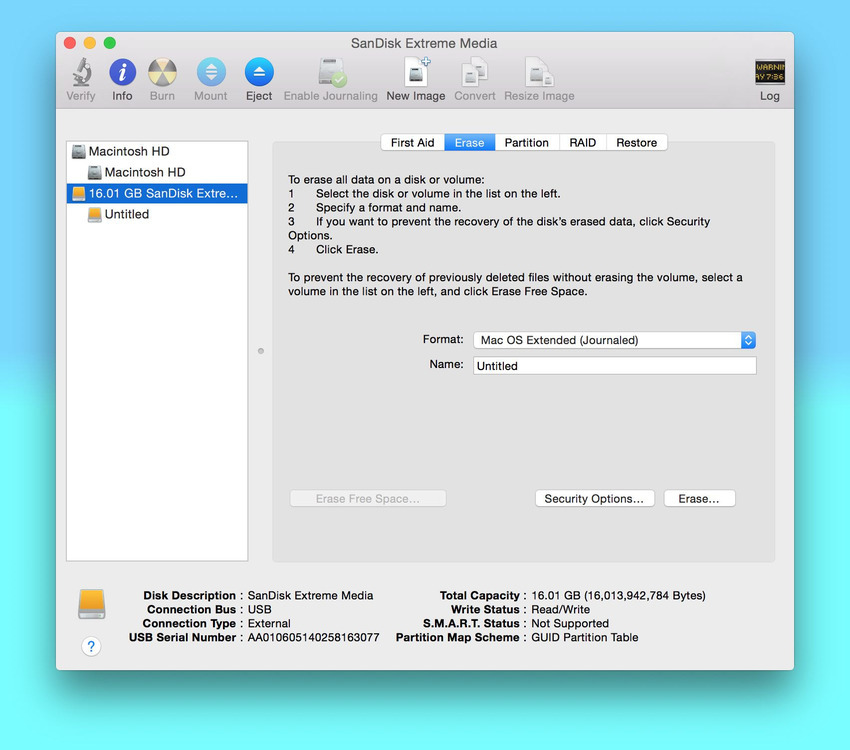
Now, format the USB drive by opening up Disk Utility. It’s in the Utilities folder in Applications.
- Select your USB drive and click on the “Erase” tab. Select Mac OS
Extended (Journaled) as the format type and keep the name as “untitled.” - Click the Erase button. This will take a few minutes, but will erase your USB drive will be erased and format it with the proper file system
Easy Option: Use DiskMaker X 5
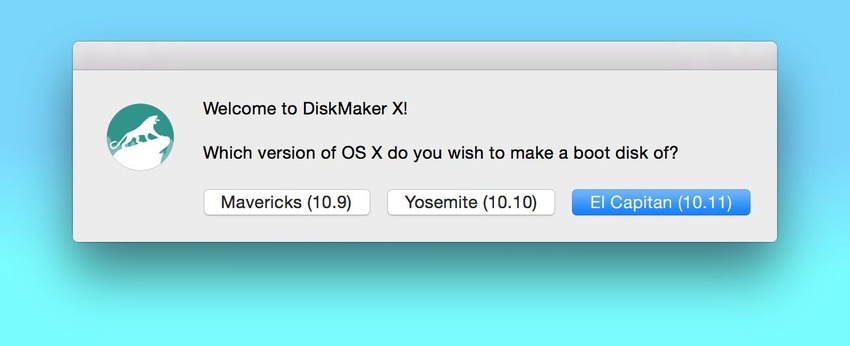
A great app for automating the creation of an OS X bootable USB disk called DiskMaker X.
DiskMaker X just released its latest version, version 5, which is compatible with El Capitan.
This is far and away the easiest way to create a bootable copy of OS X El Capitan.
Option 2: Using Terminal
First, I’d like to thank MacRumors forum member tywebb13 for his instructions on creating a manual bootable USB copy of OS X Mavericks back in 2013. His work made it easy to update the instructions to work in El Capitan.
This method requires using the Terminal app. If you’re not comfortable typing commands into Terminal, just use the DiskMaker X app (above).
To continue with using Terminal, follow the steps below.
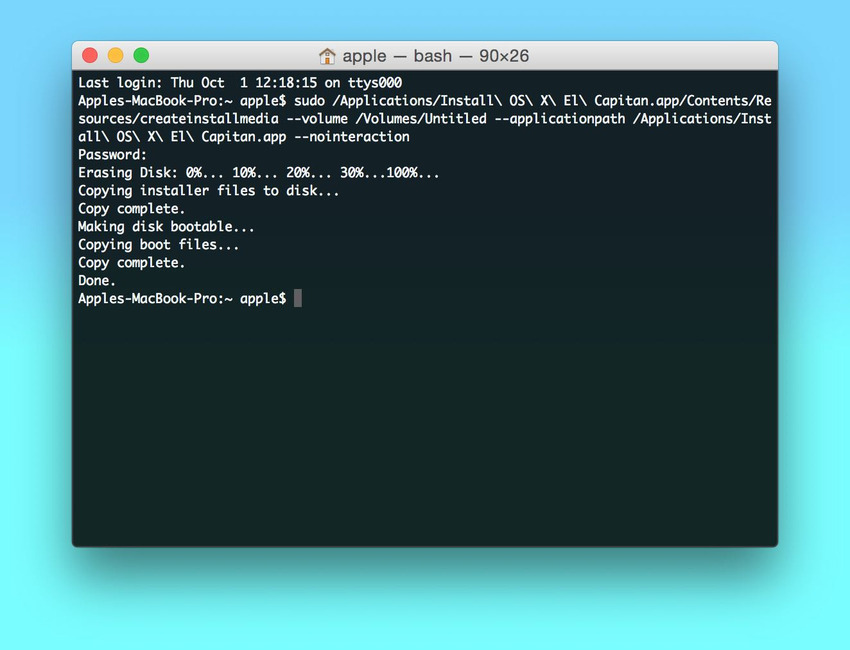
- After downloading OS X El Capitan to your Applications folder and formatting your USB drive (make sure it’s called “Untitled”), open up the Terminal app.
- Paste the following command into the Terminal window and hit enter:sudo /Applications/Install\ OS\ X\ El\ Capitan.app/Contents/Resources/createinstallmedia –volume /Volumes/Untitled –applicationpath /Applications/Install\ OS\ X\ El\ Capitan.app –nointeraction
- You will be prompted to enter in your user password. Then, you’ll see a list of processes on the terminal screen that read:Erasing Disk:
Copying Installer files to disk…
Done.
This process runs a special mode built into the OS X El Capitan installer that can create installable media. The disk you’re copying the media onto becomes bootable, too.
The process takes less time than DiskMaker X, but you’ll need to follow the instructions exactly. Don’t move the installer to another folder, and make sure you don’t have more than one disk drive titled “Untitled” connected to your machine.
Booting up and Installing El Capitan

Once your USB drive has been created, it’s time to install El Capitan.
- Restart your Mac and hold down the Option key immediately. When your machine boots up, choose the USB drive that says “Install OS X El Capitan”
- Select “Disk Utility” and then select your main hard drive. Press “Erase” on the volume. Remember, this will erase EVERYTHING on your machine.
- Go back to the main menu and choose “Install OS X.” Select your internal hard drive when prompted and continue with the installation.
After the Install
After installing OS X El Capitan, you can start restoring your programs and settings using either a Time Machine backup or Migration Assistant.
Have something to add to this story? Share it in the comments.